Internet Phones

  • Subscribe to our RSS feed.
  • Twitter
  • StumbleUpon
  • Reddit
  • Facebook
  • Digg

Monday, 9 July 2012

All Windows CMD commands.

Posted on 00:33 by Unknown


A.
* ADDUSERS = Add or list users to/from a CSV file.
* ADmodcmd = Active Directory Bulk Modify.
* ARP = Address Resolution Protocol.
* ASSOC = Change file extension associations.
* ASSOCIAT = One step file association.
* ATTRIB =Change file attributes.

B.
* BCDBOOT = Create or repair a system partition.
* BITSADMIN = Background Intelligent Transfer Service.
* BOOTCFG = Edit Windows boot settings.
* BROWSTAT= Get domain, browser and PDC info.

C.
* CACLS = Change file permissions.
* CALL = Call one batch program from another.
* CD = Change Directory - move to a specific Folder.
* CHANGE = Change Terminal Server Session properties.
* CHKDSK = Check Disk - check and repair disk problems.
* CHKNTFS= Check the NTFS file system.
* CHOICE = Accept keyboard input to a batch file.
* CIPHER = Encrypt or Decrypt files/folders.
* CleanMgr = Automated cleanup of Temp files, recycle bin.
* CLEARMEM = Clear memory leaks.
* CLIP Copy = STDIN to the Windows clipboard.
* CLS = Clear the screen.
* CLUSTER = Windows Clustering.
* CMD = Start a new CMD shell.
* CMDKEY = Manage stored usernames/passwords.
* COLOR = Change colors of the CMD window.
* COMP = Compare the contents of two files or sets of files.
* COMPACT = Compress files or folders on an NTFS partition.
* COMPRESS = Compress individual files on an NTFS partition.
* CON2PRT = Connect or disconnect a Printer.
* CONVERT = Convert a FAT drive to NTFS.
* COPY = Copy one or more files to another location.
* CSCcmd = Client-side caching (Offline Files).
* CSVDE = Import or Export Active Directory data.

D. 
* DATE = Display or set the date.
* DEFRAG = Defragment hard drive.
* DEL = Delete one or more files.
* DELPROF = Delete user profiles.
* DELTREE = Delete a folder and all subfolders.
* DevCon = Device Manager Command Line Utility.
* DIR = Display a list of files and folders.
* DIRUSE = Display disk usage.
* DISKPART = Disk Administration.
* DISKSHADOW = Volume Shadow Copy Service.
* DNSSTAT = DNS Statistics.
* DOSKEY = Edit command line, recall commands, and create macros.
* DriverQuery = Display installed device drivers.
* DSACLs  = Active Directory ACLs.
* DSAdd = Add items to active directory (user group computer.
* DSGet = View items in active directory (user group computer).
* DSQuery = Search for items in active directory (user group computer).
* DSMod = Modify items in active directory (user group computer).
* DSMove = Move an Active directory Object.
* DSRM = Remove items from Active Directory.

E. 
* ECHO = Display message on screen.
* ENDLOCAL = End localisation of environment changes in a batch file.
* ERASE = Delete one or more files.
* EVENTCREATE = Add a message to the Windows event log.
* EXIT = Quit the current script/routine and set an errorlevel.
* EXPAND = Uncompress files.
* EXTRACT = Uncompress CAB files.

F. 
* FC = Compare two files.
* FIND = Search for a text string in a file.
* FINDSTR = Search for strings in files.
* FOR /F = Loop command: against a set of files.
* FOR /F = Loop command: against the results of another command.
* FOR = Loop command: all options Files, Directory, List.
* FORFILES = Batch process multiple files.
* FORMAT = Format a disk.
* FREEDISK = Check free disk space.
* FSUTIL = File and Volume utilities.
* FTP = File Transfer Protocol.
* FTYPE = File extension file type associations.

G. 
* GETMAC = Display the Media Access Control (MAC) address.
* GLOBAL = Display membership of global groups.
* GOTO = Direct a batch program to jump to a labelled line.
* GPRESULT = Display Resultant Set of Policy information.
* GPUPDATE = Update Group Policy settings.

H. 
* HELP = Online Help.

I.
* iCACLS = Change file and folder permissions.
* IF = Conditionally perform a command.
* IFMEMBER = Is the current user a member of a Workgroup.
* IPCONFIG = Configure IP.

K.
* KILL = Remove a program from memory.

L.
* LABEL = Edit a disk label.
* LOCAL = Display membership of local groups. 
* LOGEVENT = Write text to the event viewer.
* LOGMAN = Manage Performance Monitor.
* LOGOFF = Log a user off.
* LOGTIME = Log the date and time in a file.

M. 
* MAPISEND = Send email from the command line.
* MBSAcli = Baseline Security Analyzer.
* MEM = Display memory usage.
* MD = Create new folders.
* MKLINK = Create a symbolic link.
* MODE = Configure a system device.
* MORE = Display output, one screen at a time.
* MOUNTVOL= Manage a volume mount point.
* MOVE = Move files from one folder to another.
* MOVEUSER = Move a user from one domain to another.
* MSG = Send a message.
* MSIEXEC = Microsoft Windows Installer.
* MSINFO32 = System Information.
* MSTSC = Terminal Server Connection (Remote Desktop Protocol).
* MV = Copy in-use files.

N.
* NET = Manage network resources.
* NETDOM = Domain Manager.
* NETSH = Configure Network Interfaces, Windows Firewall & Remote access.
* NETSVC = Command-line Service Controller.
* NBTSTAT = Display networking statistics (NetBIOS over TCP/IP).
* NETSTAT = Display networking statistics (TCP/IP).
* NOW = Display the current Date and Time.
* NSLOOKUP = Name server lookup.
* NTBACKUP = Backup folders to tape.
* NTRIGHTS = Edit user account rights.

O.
* OPENFILES = Query or display open files.

P.
* PATH = Display or set a search path for executable files.
* PATHPING = Trace route plus network latency and packet loss.
* PAUSE = Suspend processing of a batch file and display a message.
* PERMS = Show permissions for a user.
* PERFMON = Performance Monitor.
* PING = Test a network connection.
* POPD = Return to a previous directory saved by PUSHD.
* PORTQRY = Display the status of ports and services.
* POWERCFG = Configure power settings.
* PRINT = Print a text file.
* PRINTBRM = Print queue Backup/Recovery.
* PRNCNFG = Display, configure or rename a printer.
* PRNMNGR = Add, delete, list printers set the default printer.
* PROMPT = Change the command prompt.
* PsExec = Execute process remotely.
* PsFile = Show files opened remotely.
* PsGetSid = Display the SID of a computer or a user.
* PsInfo = List information about a system.
* PsKill = Kill processes by name or process ID.
* PsList = List detailed information about processes.
* PsLoggedOn = Who is logged on (locally or via resource sharing).
* PsLogList = Event log records.
* PsPasswd = Change account password.
* PsService = View and control services.
* PsShutdown = Shutdown or reboot a computer.
* PsSuspend = Suspend processes.
* PUSHD = Save and then change the current directory.

Q. 
* QGREP = Search file(s) for lines that match a given pattern.
* Query Process = Display processes (TS/Remote Desktop).
* Query Session = Display all sessions (TS/Remote Desktop).
* Query TermServer = List all servers (TS/Remote Desktop).
* Query User = Display user sessions (TS/Remote Desktop).

R.
* RASDIAL = Manage RAS connections.
* RASPHONE = Manage RAS connections.
* RECOVER = Recover a damaged file from a defective disk.
* REG = Registry: Read, Set, Export, Delete keys and values.
* REGEDIT = Import or export registry settings.
* REGSVR32 = Register or unregister a DLL.
* REGINI = Change Registry Permissions.
* REM = Record comments (remarks) in a batch file.
* REN = Rename a file or files.
* REPLACE = Replace or update one file with another.
* Reset Session = Delete a Remote Desktop Session.
* RD = Delete folder.
* RMTSHARE = Share a folder or a printer.
* ROBOCOPY = Robust File and Folder Copy.
* ROUTE = Manipulate network routing tables.
* RUN = Start | RUN commands.
* RUNAS = Execute a program under a different user account.
* RUNDLL32 = Run a DLL command (add/remove print connections).

S.
* SC = Service Control.
* SCHTASKS = Schedule a command to run at a specific time.
* SCLIST = Display Services.
* SET = Display, set, or remove session environment variables.
* SETLOCAL = Control the visibility of environment variables.
* SETX = Set environment variables.
* SFC = System File Check.
* SHARE = List or edit a file share or print share.
* ShellRunAs = Run a command under a different user account.
* SHIFT = Shift the position of batch file parameters.
* SHORTCUT = Create a windows shortcut (.LNK file).
* SHOWGRPS = List the Workgroups a user has joined.
* SHOWMBRS = List the Users who are members of a Workgroup.
* SHUTDOWN = Shutdown the computer.
* SLEEP = Wait for x seconds.
* SLMGR = Software Licensing Management (Vista/2008).
* SOON = Schedule a command to run in the near future.
* SORT = Sort input.
* START = Start a program, command or batch file.
* SU = Switch User.
* SUBINACL = Edit file and folder Permissions, Ownership and Domain.
* SUBST = Associate a path with a drive letter.
* SYSTEMINFO = List system configuration.

T.
* TAKEOWN = Take ownership of a file.
* TASKLIST = List running applications and services.
* TASKKILL = Remove a running process from memory.
* TIME = Display or set the system time.
* TIMEOUT = Delay processing of a batch file.
* TITLE = Set the window title for a CMD.EXE session.
* TLIST = Task list with full path.
* TOUCH = Change file timestamps.
* TRACERT = Trace route to a remote host.
* TREE = Graphical display of folder structure.
* TSSHUTDN = Remotely shut down or reboot a terminal server.
* TYPE = Display the contents of a text file.
* TypePerf = Write performance data to a log file.

U.
* USRSTAT = List domain usernames and last login.

V.
* VER = Display version information.
* VERIFY = Verify that files have been saved.
* VOL = Display a disk label.

W. 
* WAITFOR = Wait for or send a signal.
* WHERE = Locate and display files in a directory tree.
* WHOAMI = Output the current UserName and domain.
* WINDIFF = Compare the contents of two files or sets of files.
* WINMSDP = Windows system report.
* WINRM = Windows Remote Management.
* WINRS = Windows Remote Shell.
* WMIC = WMI Commands.
* WUAUCLT = Windows Update.

X. 
* XCACLS = To Change file and folder permissions.
* XCOPY = To Copy files and folders.
Read More
Posted in Windows | No comments

Sunday, 8 July 2012

List Of All Windows Shortcut Keys.

Posted on 04:00 by Unknown

* General Keys.
Ctrl + C or Ctrl + Insert = Copy.
Ctrl + X or Shift + Delete = Cut.
Ctrl + V or Shift + Insert = Paste/Move.
Ctrl + N = New File, Tab, Entry, etc.
Ctrl + S = Save.
Ctrl + O = Open.
Ctrl + P = Print.
Ctrl + Z = Undo.
Ctrl + A = Select all.
Ctrl + F = Find
Ctrl+W = To Close The Current Window.
Ctrl + F4 = Close tab or child window.
F1 = Open help.
F11 = Toggle full screen mode.
Alt or F10 = Activate menu bar.
Alt + Space = Display system menu. Same as clicking the icon on the titlebar.
Escape = Remove focus from current control/menu, or close dialog box.

* Windows Shortcuts.
Win + L (XP Only) = Locks keyboard. Similar to Lock Workstation.
Win + F or F3 = Open Find dialog. (All Files) F3 may not work in some applications which use F3 for their own find dialogs.
Win + Control + F = Open Find dialog. (Computers)
Win + U = Open Utility Manager.
Win + F1 = Open Windows help.
Win + Pause = Open System Properties dialog.
Win + Tab = Cycle through taskbar buttons. Enter clicks, AppsKey or Shift + F10 right-clicks.
Win + Shift + Tab = Cycle through taskbar buttons in reverse.
Alt + Tab = Display Cool Switch. More commonly known as the AltTab dialog.
Alt + Shift + Tab = Display Cool Switch; go in reverse.
Alt + Escape = Send active window to the bottom of the z-order.
Alt + Shift + Escape = Activate the window at the bottom of the z-order.
Alt + F4 = Close active window or if all windows are closed, open shutdown dialog.

* Shift while a CD is loading: Bypass AutoPlay.
Shift while login = Bypass startup folder. Only those applications will be ignored which are in the startup folder, not those started from the registry (Microsoft\Windows\Current Version\Run\).
Ctrl + Alt + Delete or Ctrl + Alt + NumpadDel (Both NumLock states) = Invoke the Task Manager or NT Security dialog.
Ctrl + Shift + Escape (2000/XP ) or (Ctrl + Alt + NumpadDot) = Invoke the task manager. On earlier OSes, acts like Ctrl + Escape.
Print screen = Copy screenshot of current screen to clipboard.
Alt + Print screen = Copy screenshot of current active window to clipboard.
Ctrl + Alt + Down Arrow = Invert screen. Untested on OS's other than XP.
Ctrl + Alt + Up Arrow = Undo inversion.
Win + B = Move focus to systray icons.

* General Navigation.
Tab = Forward one item.
Shift + Tab = Backward one item.
Ctrl + Tab = Cycle through tabs/child windows.
Ctrl + Shift + Tab = Cycle backwards through tabs/child windows.
Enter: = If a button's selected, click it, otherwise, click default button.
Space = Toggle items such as radio buttons or check boxes.
Alt + (Letter) = Activate item corresponding to (Letter). (Letter) is the underlined letter on the item's name.
Ctrl + Left = Move cursor to the beginning of previous word.
Ctrl + Right = Move cursor to the beginning of next word.
Ctrl + Up = Move cursor to beginning of previous paragraph. This and all subsequent Up/Down hotkeys in this section have only been known to work in Rich Edit controls.
Ctrl + Down = Move cursor to beginning of next paragraph.
Shift + Left = Highlight one character to the left.
Shift + Right = Highlight one character to the right.
Shift + Up = Highlight from current cursor position, to one line up.
Shift + Down = Highlight from current cursor position, to one line down.
Ctrl + Shift + Left = Highlight to beginning of previous word.
Ctrl + Shift + Right = Highlight to beginning of next word.
Ctrl + Shift + Up = Highlight to beginning of previous paragraph.
Ctrl + Shift + Down = Highlight to beginning of next paragraph.
Home = Move cursor to top of a scrollable control.
End = Move cursor to bottom of a scrollable control.

* Accessibility.
Right Shift for eight seconds = Toggle FilterKeys on and off. FilterKeys must be enabled.
Left Alt + Left Shift + PrintScreen = Toggle High Contrast on and off. High Contrast must be enabled.
Left Alt + Left Shift + NumLock = Toggle MouseKeys on and off. MouseKeys must be enabled.
NumLock for five seconds = Toggle ToggleKeys on and off. ToggleKeys must be enabled.
Shift five times = Toggle StickyKeys on and off. StickyKeys must be enabled.

* Microsoft Natural Keyboard with Intelli Type Software Installed.
Win + L = Log off Windows.
Win + P = Open Print Manager.
Win + C = Open control panel.
Win + V = Open clipboard.
Win + K = Open keyboard properties.
Win + I = Open mouse properties.
Win + A = Open Accessibility properties.
Win + Space = Displays the list of Microsoft IntelliType shortcut keys.
Win + S = Toggle CapsLock on and off.

* File Browser.
Arrow Keys = Navigate.
Shift + Arrow Keys = Select multiple items.
Ctrl + Arrow Keys = Change focus without changing selection. "Focus" is the object that will run on Enter. Space toggles selection of the focused item.
(Letter) = Select first found item that begins with (Letter).
BackSpace = Go up one level to the parent directory.
Alt + Left = Go back one folder.
Alt + Right = Go forward one folder.
Enter = Activate (Double-click) selected item(s).
Alt + Enter = View properties for selected item.
F2 = Rename selected item(s).
Ctrl + NumpadPlus = In a Details view, resizes all columns to fit the longest item in each one.
Delete = Delete selected item(s).
Shift + Delete = Delete selected item; bypass Recycle Bin.
Ctrl while dragging item =  Copy.
Ctrl + Shift while dragging item =  Create shortcut.

* Remote Desktop Connection Navigation.
Ctrl + Alt + End = Open the NT Security dialog.
Alt + PageUp = Switch between programs.
Alt + PageDown = Switch between programs in reverse.
Alt + Insert = Cycle through the programs in most recently used order.
Alt + Home = Display start menu.
Ctrl + Alt + Break = Switch the client computer between a window and a full screen.
Alt + Delete = Display the Windows menu.
Ctrl + Alt + NumpadMinus = Place a snapshot of the entire client window area on the Terminal server clipboard and provide the same functionality as pressing Alt + PrintScreen on a local computer.
Ctrl + Alt + NumpadPlus = Place a snapshot of the active window in the client on the Terminal server clipboard and provide the same functionality as pressing Print Screen on a local computer.

* Helpful accessibility keyboard shortcuts.
Switch FilterKeys on and off. Right SHIFT for eight seconds.
Switch High Contrast on and off. Left ALT +left SHIFT +PRINT SCREEN.
Switch MouseKeys on and off. Left ALT +left SHIFT +NUM LOCK.
Switch StickyKeys on and off. SHIFT five times.
Switch ToggleKeys on and off. NUM LOCK for five seconds.

* List of F1-F9 Key Commands for the Command Prompt.
F1 = Right arrow: Repeats the letters of the last command line, one by one.
F2 = Displays a dialog asking user to "enter the char to copy up to" of the last command line.
F3 = Repeats the last command line.
F4 = Displays a dialog asking user to "enter the char to delete up to" of the last command line.
F5 = Goes back one command line.
F6 = Enters the traditional CTRL+Z.
F7 = Displays a menu with the command line history.
F8 = Cycles back through previous command lines (beginning with most recent).
F9 = Displays a dialog asking user to enter a command number, where 0 is for first command line entered.
Alt+Enter: toggle full Screen mode.
up/down = Scroll thru/repeat previous entries.
Esc = To delete line.
Read More
Posted in Windows | No comments

Saturday, 7 July 2012

Online Shopping Tips.

Posted on 01:46 by Unknown


* Online shopping is now a day a common trait for busy people. The basic idea for online shopping is to reduce the stress and time for going to a conventional shop. People go shopping Online to make the best use of the technology available to them. The basis for online shopping is the internet; through internet it is now possible to purchase goods from the internet. Consumers now do not need to go to a store for shopping anymore.

* They can just purchase their desired good without even going to any shop. Since the early nineties the concept of online shopping has come a long way. Now going online for shopping has become must for those who love shopping. People may think that it can decrease their option for choosing from a wide variety of product but to speak the truth it does quite the opposite.

* People now have the luxury of choosing form a vast category of product line. They are now not stuck with the option for going in just one shop, they now actually can buy a certain product from anywhere in the world. Suppose any person sitting in India can now buy any product he or she wants from any online store in the U.S.A. They do not go through any lengthy process for buying the desired product. Through the help of internet he or she can gain access to any online store desired. He can surf through as many online stores he or she wants. To purchase any stuff the consumer will need to have a credit card. The online stores also accept payments from various methods. Some of the online stores also take payments in debit cards, checks and payment on delivery of product. People must make sure some key issues before making any purchase online.

* Although it is very easy to shop online but still there are many issue that can make shopping experience horrible. There are many incidents were people are being scammed while they shop online. If they can make sure some little things they can avoid these problems. Consumers should always check the background of the company first. If they don't check the background of the company they can easily be cheated if the company is fake. The consumers should only make purchase where there is a valid address or phone number of the online store is given. Consumers must never buy products from companies that send spam mails because often when people purchase from these companies they do not receive the products. Consumers should try to buy using a credit card while shopping online because if there is any dispute the consumer can inform the bank which issued the credit card and it will take action and the buyer will not be needed to pay if there is any problem. If buyer can be aware of these little things their online shopping experience will be wonderful.
Read More
Posted in Earn Money, Internet | No comments

Friday, 6 July 2012

Play Safe Online games Tips for Child.

Posted on 06:42 by Unknown


* To Play Safe Online Games Then Follow The Practical Things Below.

* You Must Know the risks of online gaming = Kids might download the bad with the good. When kids download games from less-than-reputable sites or through links in email, instant, or text messages, they might also be getting offensive content, spam, or malicious software. Some free games may require an extensive profile, and then the game owners could illegally rent or sell the child’s data. Kids might bump into bullies. Some gamers play simply to harass and taunt other players using bad language, cheating, or attacking them inappropriately. Bad people might befriend kids. Some adults may try to earn the trust of gamers by pretending to be kids, sharing tips on how to win, or giving gifts like points. They may be trying to run a scam or angling for a phone call or an in-person meeting.

* Explore online games = Play with your kids or sit with them while they playing the game. You will have fun and learn about their gaming, too. Check the ratings of the games your kids want to play. In the U.S. and Canada, most games sold at retail stores are described and rated by the Entertainment Software Rating Board (ESRB). Use these ratings as you discuss the most appropriate games with your child or teen. Stick to well-known games or those from reputable sites. If you use well-known gaming sites like MSN Games, Xbox LIVE, or Yahoo! Games, you reduce the risk of downloading viruses or being scammed.

* Review the game’s terms before the playing game = Find out how the game service monitors players and responds to abuse. Xbox LIVE, for example, helps gamers protect their identities and report objectionable content and behavior. Read the site’s privacy policy to learn how it will use and protect kids’ information. No privacy policy? Play elsewhere. Agree on rules of play. Work together to create family gaming guidelines that fit each child's age and maturity. For ideas, see Microsoft’s sample agreement, the PACT (PDF download).

* Teach kids rules for safer gaming = Keep your personal information a secret. Advise kids never to share personal information about themselves or their family with other players—their real name, email or home address, age, gender, pictures, and the like.

* Protect game accounts with strong passwords = Strong passwords are at least eight characters and include a mix of letters, numbers, and symbols. Learn how to create them.
Cheaters and hackers most often gain access because they were given a password, so teach kids never to share passwords with anyone. Make up a safe gamer name. Help children choose screen names and gamer tags that do not reveal anything personal, are not suggestive, and do not make kids easy to locate.

Read More
Posted in Apple Mac, Internet, Windows | No comments

Thursday, 5 July 2012

Cool Google Chrome Browser Tricks.

Posted on 01:05 by Unknown


1) Google Chrome Browser Shortcuts:
* The following are some useful shortcuts:
* Alt+F = Open the wrench menu (i.e chrome settings menu).
* Ctrl+J = Go to downloads window.
* Ctrl+H = Go to history window.
* Ctrl+Tab = Navigate Tabs.
* Alt+Home = Go to home page.
* Ctrl+U = View source code of the current page.
* Ctrl+K = To search quickly in the address bar.
* Ctrl+L = Highlights the URL in the address bar (use this to copy/paste the URL quickly).
* Ctrl+N = Open a new Chrome browser window.
* Ctrl+Shift+N = Open a new incognito window (for private browsing).
* Ctrl+Shift+B = Toggle bookmark display.
* Ctrl+W = Close the current Tab.
* Alt+Left Arrow = Go to the previous page from your history.
* Alt+Right Arrow = Go to the next page from your history.
* Space bar = Scroll down the current web page.

2) Google Cloud Print:
* Go to Settings > Options > Under the Hood > click on sign into “Google Cloud Print”.
* Once you setup your printer using Google cloud print, you can print to it from anywhere.
i.e You can print to it from your mobile, other PC at work, or any other system that is connected to the internet.

3) Detach a Tab:
* If you have multiple Tabs opened, and like to detach a single tab as a separate Chrome instance, just drag the tab anywhere outside the browser, which will detach the tab and run it in a separate Chrome browser window.

4) Navigate Between Tabs Quickly:
* Use Ctrl+Tab to navigate Tabs one by one.
* Press Ctrl-1 to go to 1st Tab.
* Press Ctrl-2 to go to 2nd Tab.
* Press Ctrl-9 to switch to the last Tab.

5) Drag And Drop Downloaded file:
* Once a file is downloaded, you can just drag and drop the file (from the Chrome download window) to your Windows explore, or any other file browser that you are using on your system.

6) History:
* Press Ctrl+H or go to Customize > History, to launch the history window. From here you can search for a specific website from your history, delete all your history, or delete only selected items from your history.

7) Incognito  Secret Mode:
* Incognito mode is for private browsing, where Chrome doesn’t record your browsing history, download history.
* Any cookies that are stored during the incognito mode is deleted when you close the browser.
* You can launch incognito by pressing Ctrl + Shift + N or Settings > New incognito Window or right mouse-click on a link from a regular Chrome session, and select “open link in incognito window”.
* One of the practical use for this mode (apart from private browsing) is to login to the same site using two accounts.
For example, if you have two gmail accounts, login using the first account in your regular Chrome browser, and login using the second account in your Incognito mode on your Chrome browser. This way, you can be logged in to two gmail accounts at the same time on Chrome browser.

8) Display Home Button:
* By default if chrome doesn’t display the ‘Home’ button in the toolbar. Click on the ‘Wrench Icon’ on the right-hand corner of the browser to get to the “Customize” option for Chrome browser > Preferences (or Options) > Select the check-box for “Show home button in toolbar”.This will now display the ‘Home’ button in front of the URL field. Click this button to go to your home page quickly.
Read More
Posted in Browser, Internet | No comments

Wednesday, 4 July 2012

Internet Cyclone To Increase internet speed up to 200%.

Posted on 01:05 by Unknown

* Internet Cyclone - Is a powerful, easy-to-use, Internet Optimizer  / Internet Accelerator for Windows 95, 98, ME, NT, 2000, XP, VISTA and WINDOWS 7 designed to automatically optimize your Windows settings which will boost your Internet connection speed up to 200%. Internet Cyclone is compatible with all modems and high speed LAN, ISDN, CABLE, DSL, T1 or other connections. This software will still be useful to you after upgrading your Internet connection. 

* Using this software you will gain guaranteed faster Internet speed for the time you're online. Surfing, downloading files, emailing, playing online games, and anything else you do online will be faster. This is an excellent software for slow dial-up modems as well as high speed access connections.

* This software will be extremely valuable to you as you continue to upgrade your computer and connections. It will work with all internet connections and all browsers so it will still be extremely useful to you in the future. You should use Internet Cyclone as a REAL alternative to expensive upgrades.

* What Internet Cyclone Can offers to you = Internet Cyclone optimizes your Windows settings automatically in order to increase internet speed or you can customize them manually. You can speed internet connection without changing your Hardware. Works with all Browsers. It is compatible with all Dial-Up modems and high speed LAN, CABLE, DSL, DSL (PPPoE), T1 or other internet connections. Internet Cyclone will speed up web surfing, online gaming, e-mailing, chat and video conference and it will even speed up downloads.

* How Is The Internet Cyclone Working = While the actual maximum transfer speed of your Internet connection cannot be changed except by upgrading your hardware, Internet Cyclone can increase the performance of your existing modem/network hardware by optimizing Windows modem/network settings to maximize the efficiency of your current hardware. By default, your Windows PC does not manage Internet connections as optimally as possible.

* Internet Cyclone is designed to automatically change many registry settings in windows such as: Maximum Transmission Unit (MTU), Maximum Segment Size (MSS), Time To Live (TTL), TCP Receive Window (Rwin), Cache Size (NDI), PMTU Black Hole Detect, PMTU Auto Discovery (PAD), Session Keep Alive (SKA) and some Windows Extra settings like: Selective Acknowledgement (SACK), Maximum Duplicate Acknowledge (Max DupAcks), Large Window Scaling, Ports COM, VCache value, Combuffer value, Internet Explorer settings, Maximum connection per server and many other values in order to increase internet speed.
If these settings are not correctly optimized then you will not get the best performance of your Internet Connection. Internet Cyclone is a proof method to change these settings easily and quickly. If you are an experienced user, then with this Internet optimizer you can set these values manually and speed up Internet connection at maximum.

* How Much Speed You Can Gain With Internet Cyclone = It will not make your 56k dial-up modem connection to 100k. If your Internet connection speed is a 56k dial-up modem, it will allow you to use it with the best performance. For example we were informed by other people that this Internet optimizer helped them to boost their high speed Internet connections up to 120kb/s (this means a boost of 400%). Microsoft publishes Windows operating systems with default settings (the most compatible settings with all systems). But you cannot get the best performance of your Internet connection with this default values. At that moment, you need Internet Cyclone to change this Windows Registry settings that affects Internet connection speed through a simple, intuitive interface, and by giving you the chance to speed internet connection.

* In the unregistered version of internet cyclone there are disabled the extra settings in windows registry such as: SlowNet Option, SACK Option, Max DupAcks, Large Window Scaling, Maxim Connection per Server, VCache value, Combuffer value, the speed of Com ports, Maximum Sockets Value and Maximum Connection Value, settings that will improve even more your Internet connection speed.

* System Requirements:
* 486DX2/66 required, Pentium class or higher recommended.
* Microsoft Windows NT, 95, 98  2000, 2003, XP, VISTA and WINDOWS 7.
* 16Mb of Memory or Higher.
* Any connection to the net.
* 2 MB of free disk space.
* Internet Cyclone will increase internet speed up to 200%.

CLICK BELOW TO DOWNLOAD LATEST VERSION OF INTERNET CYCLONE FREE.
Download Internet Cyclone Free.
Read More
Posted in Internet | No comments

Tuesday, 3 July 2012

How To Change IP Setting In Windows.

Posted on 00:23 by Unknown

* TCP/IP defines how your computer will communicates with other computers.To make it easier to manage TCP/IP settings i recommend using automated Dynamic Host Configuration Protocol. Dynamic Host Configuration Protocol automatically assigns IP addresses to the computers on your network if your network supports it. If you use Dynamic Host Configuration Protocol then you don't have to change your TCP/IP settings if you move your computer to another location and Dynamic Host Configuration Protocol doesn't require you to manually configure TCP/IP settings such as Domain Name System and Windows Internet Name Service.

* To change your other IP settings then follow these steps;

1) Firs of all you need to open Network Connections by clicking the Start button and then click Control Panel. In the search box type adapter then under Network and Sharing Center then click View Network Connections.
2) Now right click the connection that you interested to change and then click Properties.
3) Now if you're prompted for an administrator password or confirmation type the password or provide confirmation.
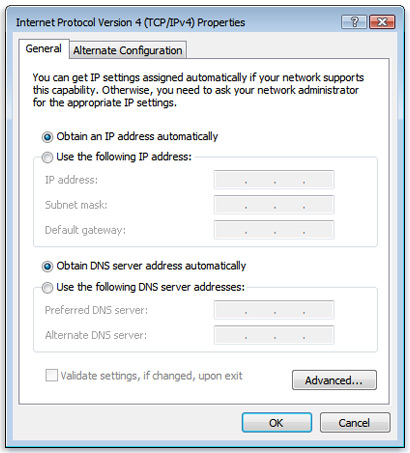
4) Now click the Networking tab. Whit in this connection uses the following items click either Internet Protocol Version 4 (TCP/IPv4) or Internet Protocol Version 6 (TCP/IPv6) and then click Properties.


* To specify IPv4 IP address settings do one of the following:
1) To get your IP settings automatically using Dynamic Host Configuration Protocol click Obtain an IP address automatically then click ok.
2) To specify your IP address click use the following IP address and then in the IP address subnet mask and default gateway boxes type the IP address settings.

* To specify your IPv6 IP address settings do one of the following:
1) To get IP settings automatically using Dynamic Host Configuration Protocol click obtain an IPv6 address automatically and then click ok.
2) To specify an IP address click use the following IPv6 address then in the IPv6 address subnet prefix length and default gateway boxes type the IP address settings.

* To specify your DNS server address settings do one of the following:
1) To get a DNS server address automatically using Dynamic Host Configuration Protocol click obtain DNS server address automatically then click OK.
2) To specify a DNS server address, click use the following DNS server addresses then in the Preferred DNS server and Alternate DNS server boxes type the addresses of the primary and secondary DNS servers.
3) To change your advanced DNS, WINS, and IP settings, click Advanced.

Read More
Posted in Internet, Windows | No comments
Newer Posts Older Posts Home
Subscribe to: Posts (Atom)

Popular Posts

  • Useful Mozilla Firefox Shortcut Keys.
    Today everyone is using internet for downloading movies, songs and social networking sites like facebook or something etc. But to perform th...
  • Online Money Making Tips.
    Making money online is a dream for many people. Because having a home based online business means full freedom. You can run online business ...
  • How To Open Password protected WINRAR file.
    * You may have question in mind as how to open password protected RAR files. For Example, Suppose you download a movie or something else by ...
  • How To Play Big Games Smoothly In Android Phone.
    Are you feeling your phone is slow when you play high games in your android phone? If your phone gets stuck and hangs when you play high gam...
  • Use What's App And Other Mobile Apps On Windows or Mac Computer.
    Whats app is a most popular mobile platform messenger which is available is all the markets. But currently its available for all the mobile ...
  • All Windows CMD commands.
    A. * ADDUSERS = Add or list users to/from a CSV file. * ADmodcmd = Active Directory Bulk Modify. * ARP = Address Resolution Protocol. * ASSO...
  • Online Survey Sites With Payment Proof To Earn Money
    There are so many people who are making money by online surveys. There are many of people making a few extra money by taking online surveys....
  • Online Shopping Tips.
    * Online shopping is now a day a common trait for busy people. The basic idea for online shopping is to reduce the stress and time for going...
  • List Of All Windows Shortcut Keys.
    * General Keys. Ctrl + C or Ctrl + Insert = Copy. Ctrl + X or Shift + Delete = Cut. Ctrl + V or Shift + Insert = Paste/Move. Ctrl + N = New...
  • Best 6 Google Adsense Alternatives.
    1) Infolinks = Infolinks is the best adsense in text advertising network and is the highest paying adsense.They have several different ads ...

Categories

  • Android
  • Apple
  • Apple Mac
  • Browser
  • Computer
  • Earn Money
  • Facebook
  • HD Wallpapers Pack
  • Internet
  • IP Address
  • Mobile
  • twitter
  • Web Traffic
  • Windows

Blog Archive

  • ▼  2013 (44)
    • ▼  November (3)
      • Online Survey Sites With Payment Proof To Earn Money
      • Earn Money With Survey With Proof OF Payment
      • Apps To Increase Android Battery Life
    • ►  October (6)
    • ►  September (1)
    • ►  August (1)
    • ►  July (4)
    • ►  June (4)
    • ►  May (2)
    • ►  April (2)
    • ►  March (5)
    • ►  February (4)
    • ►  January (12)
  • ►  2012 (66)
    • ►  December (10)
    • ►  November (4)
    • ►  October (7)
    • ►  September (12)
    • ►  August (17)
    • ►  July (14)
    • ►  June (2)
Powered by Blogger.

About Me

Unknown
View my complete profile